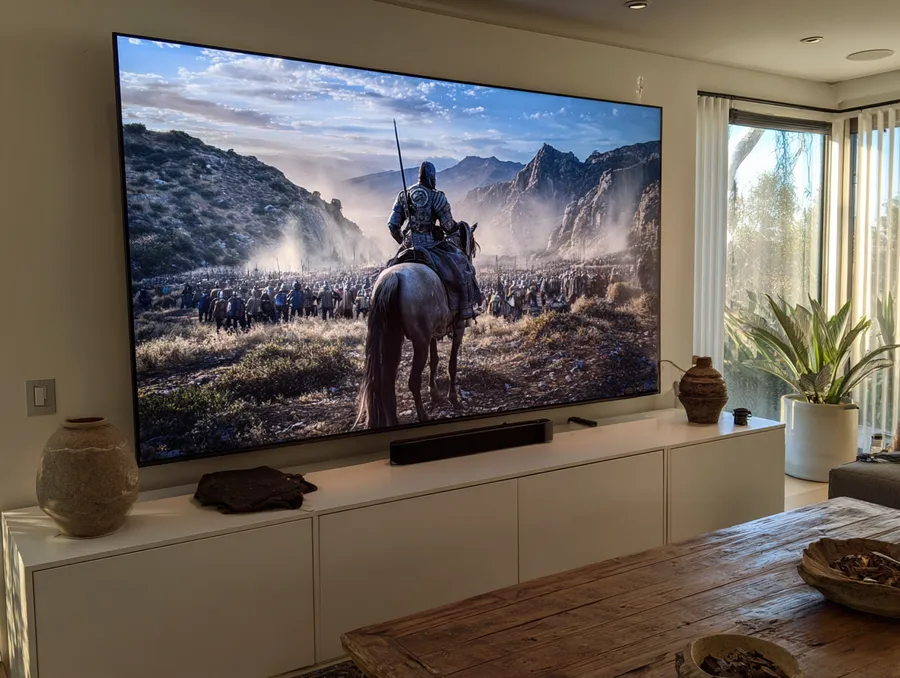
If you bought a nice 4K television expecting IPTV to look brilliant, only to find that some channels look soft, blurry, blocky, or oddly smeared, you are not alone. It is one of the most common disappointments people run into after upgrading their TV.
The confusing part is that your television is not necessarily the problem. In fact, many 4K TVs make weak IPTV streams look worse, not better, simply because they expose the source's limitations more clearly on a much sharper panel.
This article explains why IPTV can look underwhelming on a 4K TV, what is actually causing it, and which settings are worth changing to get the best possible picture.
1. A 4K TV Does Not Magically Turn IPTV Into 4K
This is the biggest misunderstanding by far.
A 4K TV has a panel with far more pixels than a standard HD television. But if the IPTV stream you are watching is only 720p or 1080p, the TV still has to stretch that image to fill the full 4K screen.
That process is called upscaling. Every 4K TV does it, because otherwise an HD channel would only occupy part of the screen. The problem is that upscaling can only work with the detail that already exists in the original stream. It cannot invent true sharpness that was never there.
So if your provider is sending a low-bitrate 720p sports channel, your TV is effectively enlarging a mediocre image to fit a very sharp screen. The result can look softer and less natural than you expected.
2. Bitrate Matters More Than Resolution
People focus on labels like 720p, 1080p, and 4K, but bitrate is often the bigger factor.
Resolution tells you how many pixels are in the image. Bitrate tells you how much data is being used to describe that image. If the bitrate is too low, the picture loses detail, introduces blockiness, and starts breaking apart during motion, no matter what resolution label is attached to it.
That is why one 1080p stream can look excellent while another 1080p stream looks terrible. On paper, they have the same resolution. In practice, one may be heavily compressed and starved of data.
This becomes especially obvious on:
- live football
- fast camera pans
- dark scenes
- smoke, rain, grass, and crowds
These are exactly the kinds of scenes that expose weak IPTV streams.
3. Your TV Is Revealing Compression, Not Causing It
Modern 4K TVs are very good at showing fine detail. Unfortunately, they are also very good at showing the flaws in a low-quality source.
When an IPTV stream is over-compressed, you may notice:
- blurry faces
- blocky backgrounds
- smudging during movement
- shimmering edges
- strange halos around players or subtitles
That does not necessarily mean the TV is bad. It usually means the TV is being honest.
On an older or lower-resolution screen, some of those flaws were easier to ignore. On a large 4K panel, especially 55 inches and above, they become much more visible.
4. Motion Smoothing Can Make Live TV Look Worse
A lot of people assume that more picture processing means a better image. With IPTV, that is often the opposite of the truth.
Many 4K TVs ship with motion interpolation settings enabled by default. Different brands call it different names, but the idea is the same: the TV creates extra frames to make movement look smoother.
This can cause all sorts of problems on IPTV:
- strange artificial motion
- ghosting around players
- halos around moving objects
- smearing during quick pans
- the "soap opera" look
Live sport is where this is most obvious. If football looks unnatural or smeary, motion smoothing is often a big part of the problem.
Try reducing or disabling:
- Motion Smoothing
- TruMotion
- Auto Motion Plus
- MotionFlow
- Intelligent Frame Creation
The exact name depends on the TV brand, but the effect is the same.
5. Sharpness Settings Are Often Too High
This one catches people out all the time.
Many TVs ship with sharpness turned up far beyond what looks natural. On a good source, that can create unwanted edge enhancement. On a compressed IPTV stream, everything gets worse by exaggerating noise, ringing, and false detail.
If the picture looks harsh, outlined, or artificially crispy, the sharpness setting may be too high.
Counterintuitively, lowering sharpness often produces a cleaner, more realistic image.
Good general advice:
- Turn the sharpness down from the default
- avoid "Dynamic" or "Vivid" modes
- Use Movie, Cinema, Filmmaker, or Standard mode as a starting point
Those modes usually apply less destructive processing.
6. Cheap Streaming Devices Can Hurt Picture Quality
Not every device handles IPTV equally well.
A weak streaming box may struggle with:
- decoding high-bitrate streams smoothly
- switching between refresh rates properly
- handling H.265 efficiently
- running the IPTV app and EPG without stutter
That can lead to:
- micro-stutter
- poor scaling
- delayed frame delivery
- unstable playback
This is one reason a stream may look noticeably better on an Nvidia Shield or Fire TV Stick 4K than on a no-name Android box. The source has not changed, but the playback hardware is doing a better job.
7. Your IPTV App Also Affects the Picture
The app matters more than people think.
Different IPTV players can use different playback engines, buffering strategies, and decoding paths. That changes how the image is rendered and how smoothly motion is handled.
For example, if one app looks softer or stutters more than another, that does not automatically mean the stream is bad. It may simply be a weaker player.
If the picture seems off, test the same channel in:
- TiviMate
- IPTV Smarters
- VLC
- another compatible player your device supports
You are not imagining it if one looks better than another. That happens.
8. Wi-Fi Problems Can Show Up as Poor Picture Quality
Not all bad-looking IPTV is purely a visual processing issue. Sometimes the stream quality drops because the connection is unstable.
When bandwidth dips or packets arrive inconsistently, the player may:
- reduce quality
- pause and recover
- show macroblocking
- smear motion
That can look like a "picture quality" issue when it is actually a network issue.
If the image looks worse in the evening than during the day, or worse in one room than another, check:
- Wi-Fi signal strength
- whether the device is on 2.4GHz instead of 5GHz
- network congestion from other devices
- whether Ethernet improves the result
Picture quality problems and buffering problems often overlap more than people realise.
9. Bigger TVs Make Weak Streams Look Worse
Screen size matters.
A 43-inch 4K television and a 65-inch 4K television may be receiving the exact same IPTV stream, but the larger screen makes flaws much easier to spot. Compression artefacts, soft detail, and poor motion handling are all magnified.
So if your new bigger TV seems to make IPTV look worse, it may not be because the TV is inferior. It is often because the larger screen is less forgiving.
This is especially true if:
- you sit quite close to the TV
- the channel is only 720p
- the bitrate is low
- the stream is heavily compressed
10. Sports Channels Expose Every Weakness
Live sports are the hardest content for IPTV to handle well.
Why? Because it combines:
- fast motion
- Lots of fine detail
- wide camera pans
- bright grass or textured backgrounds
- packed stadium crowds
That is a nightmare scenario for aggressive compression.
If football looks worse than films or news channels, that does not mean your device is broken. It usually means that sport is exposing the limits of the stream quality more clearly than slower content does.
11. TV Settings Worth Changing First
If you want the quick version, these are the first settings to test:
| Setting | What to Try |
|---|---|
| Picture Mode | Use Cinema, Movie, Filmmaker, or Standard |
| Sharpness | Lower it from the default |
| Motion Smoothing | Reduce or turn off |
| Noise Reduction | Try low or off |
| Contrast Enhancer / Dynamic Contrast | Turn off |
| Colour Boost / Vivid Processing | Turn off |
The goal is not to make the TV do more. It is to stop it from making a weak source look worse.
12. Device and App Upgrades That Actually Help
If you want better IPTV quality on a 4K TV, the biggest improvements usually come from the chain around the TV:
- Use a better streaming device.
- Use a better IPTV player.
- Improve Wi-Fi or switch to Ethernet.
- Test another provider or channel source if quality is consistently poor.
That order matters.
Many people spend ages tweaking TV settings when the real bottleneck is a cheap box, a bad app, or a weak stream. The television is just the last part of the chain.
13. The Honest Truth About "4K IPTV"
A lot of IPTV marketing throws around the term "4K" very loosely.
Some providers do offer true high-quality 4K streams for certain channels or events. But a lot of so-called 4K IPTV is really just:
- upscaled HD
- low-bitrate pseudo-4K
- unstable streams that look worse than strong 1080p
In many cases, a clean, stable, high-bitrate 1080p stream will look better than a poor-quality stream labelled as 4K.
That is why chasing the label alone is not the best approach. Real stream quality matters more.
14. Final Thought: Your TV Is Only One Part of the Chain
If IPTV looks disappointing on your 4K TV, the television is only one possible cause, and often not the main one.
Most of the time, poor IPTV picture quality comes down to one or more of these:
- low source bitrate
- heavy compression
- weak streaming hardware
- app limitations
- unstable network performance
- over-processed TV settings
The good news is that several of those can be improved. If you use a capable device, a solid IPTV player, sensible picture settings, and a stable connection, even ordinary HD streams can look very good on a 4K screen.
The important thing is to stop expecting the TV alone to fix the stream. Once you look at the whole setup, the picture usually starts to make a lot more sense.